Claude Code Can't Copy From the Terminal? How to Fix It

If you can’t copy text from Claude Code, it’s usually because fullscreen rendering captures your mouse. Select text and release the mouse to copy it automatically, run /copy to copy Claude’s last response, or hold your terminal’s native selection key while you drag.
Fullscreen rendering handles mouse events inside Claude Code, so your terminal’s own click-and-drag selection stops working. That’s why Cmd+C can seem to do nothing.
This article shows each way to copy text, how to get your normal terminal selection back, and how to fix copying over SSH.
Copy with the /copy command
The most reliable way to copy Claude’s answer is the /copy command:
/copy
This copies Claude’s last response to your clipboard. To copy an older response, pass a number. For example, /copy 2 copies the second-to-last response.
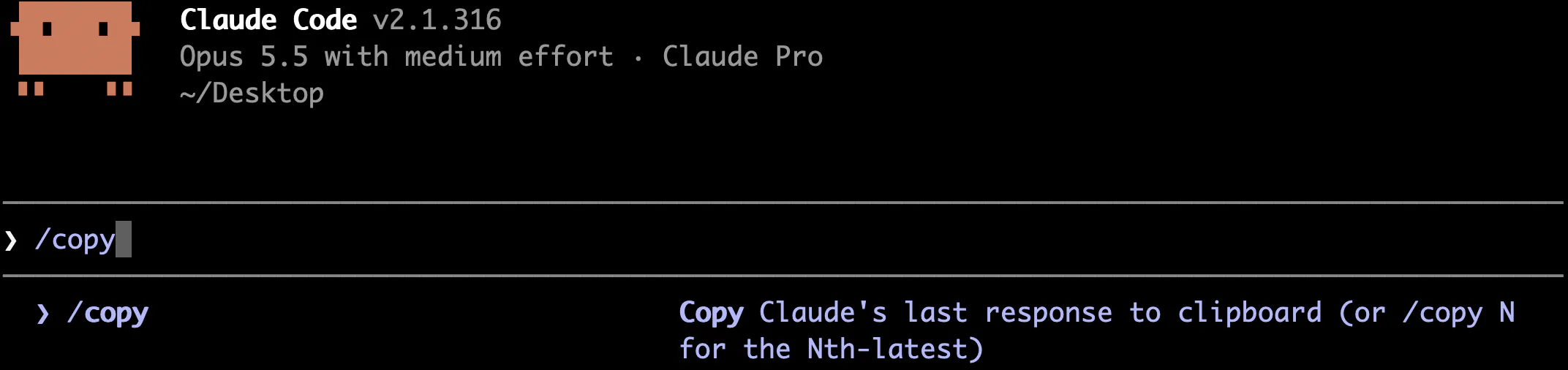
When the response has code blocks, Claude Code shows a picker so you can copy just one block or the full response. Press w in the picker to save the selection to a file instead.
Select text with the mouse
In fullscreen rendering, click and drag to select text anywhere in the conversation. The text is copied automatically when you release the mouse, so you don’t need to press a copy shortcut.
A few shortcuts make selecting easier:
- Double-click selects a word
- Triple-click selects a line
Shift+ arrow keys extend the selection
You can turn this off by toggling Copy on select in /config. You then copy manually with Ctrl+Shift+C. In terminals like kitty, WezTerm, Ghostty, and iTerm2, Cmd+C also works.
If you have text selected, Ctrl+C copies it instead of cancelling.
Use your terminal’s native selection
To let your terminal handle the selection, hold a key while you click and drag. The key depends on your terminal:
| Terminal | Key to hold |
|---|---|
| macOS Terminal.app | Fn |
| iTerm2 | Option |
| VS Code and Cursor | Shift |
| Most other terminals | Shift |
Your usual shortcut, such as Cmd+C, then works on what you selected.
How to turn off mouse capture
If you always want your terminal’s normal selection, you have two options.
The first is to switch back to the classic renderer, which runs inside your terminal’s normal scrollback:
/tui default
The second is to keep fullscreen rendering but stop it from capturing the mouse. Set this environment variable before starting Claude Code:
CLAUDE_CODE_DISABLE_MOUSE=1 claude
With the mouse capture off, you can still scroll with PgUp and PgDn. You lose wheel scrolling and clicking inside Claude Code.
Copying doesn’t work over SSH
When Claude Code runs on a remote machine, it can’t use the clipboard on your own computer. It sends the text to your terminal with an escape sequence called OSC 52, and your terminal decides whether to accept it.
This means /copy can report Copied to clipboard even when nothing arrived.
Here’s how to fix it for common terminals:
- iTerm2: turn on Settings > General > Selection > Applications in terminal may access clipboard, or run
/terminal-setup - macOS Terminal.app: it doesn’t support OSC 52, so hold
Fnwhile selecting and pressCmd+C
You can also run /copy and press w to save the text to a file on the remote machine.
Copy fails with pbcopy or xclip
Sometimes Claude tries to put text on your clipboard by running pbcopy, xclip, or wl-copy, and your clipboard doesn’t change.
When sandboxing is on, these commands can’t reach the system clipboard. Ask Claude to print the content in its response, then run /copy.
How to paste into Claude Code
Pasting text works with your terminal’s normal paste shortcut. If you paste more than 800 characters or more than three lines, Claude Code collapses it into a placeholder like this:
[Pasted text #1 +120 lines]
Your text isn’t lost. The full content is still sent when you press Enter.
Pasting an image uses a different shortcut:
| Terminal | Paste an image |
|---|---|
| Most terminals | Ctrl+V |
| iTerm2 | Cmd+V |
| Windows and WSL | Alt+V |
Conclusion
Use /copy to copy Claude’s responses, or drag with the mouse and let go to copy a selection. If you want your terminal’s normal selection, hold its native selection key, or run /tui default to leave fullscreen rendering.
If you also have trouble moving through the conversation, see how to fix Claude Code when you can’t scroll up.